Install GPT for Docs
GPT for Docs is part of the GPT for Sheets – Autosheet add-on. One installation covers both Google Sheets and Google Docs; this guide focuses on installing and using the add-on for Google Docs.
Prerequisites
If you use multiple Google accounts, it is recommended that you create a browser profile for each account on Google Chrome, Microsoft Edge, or Apple Safari.
Installation
-
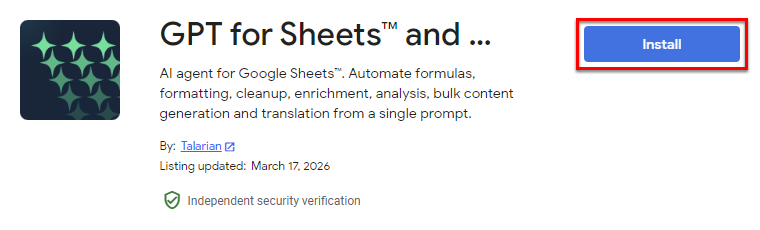
Go to the installation page.
-
Click Install.
-
Click Continue in the confirmation popup.
-
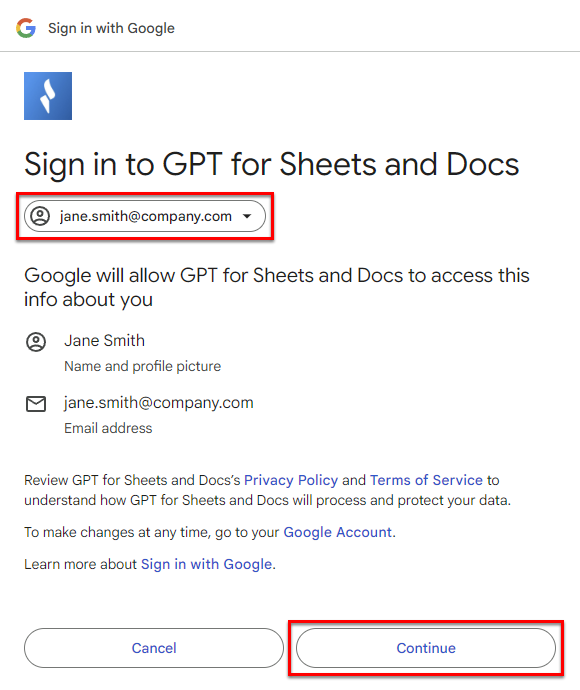
Select for which Google account you want to install GPT for Sheets – Autosheet, and click Continue.
-
Click Select all to grant GPT for Sheets – Autosheet the required permissions, and click Continue.
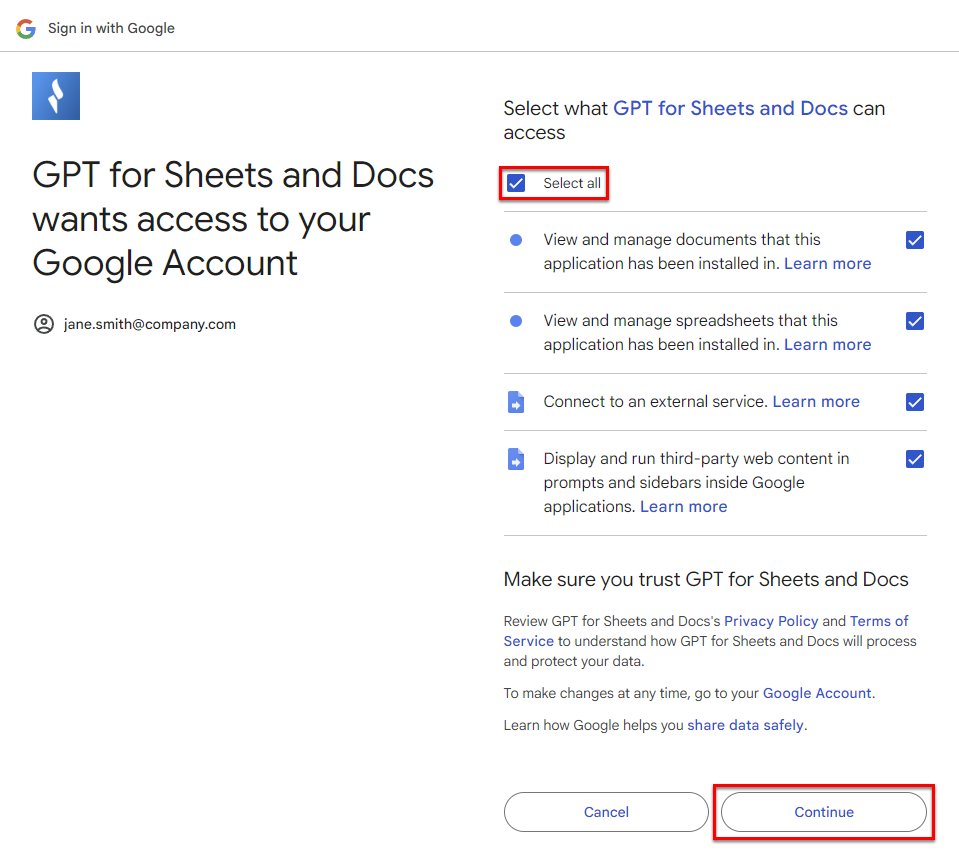
A pop-up window indicates that GPT for Sheets – Autosheet has been installed. The add-on is available in your Google documents from Extensions > GPT for Sheets – Autosheet > Launch.
If your organization uses a firewall or proxy that restricts network access, you must whitelist the following domains for the add-on to work:
*.autosheet.com
*.gptforwork.com
*.google.com
*.googleapis.com
*.googleusercontent.com
Having trouble installing?
If you run into any issues while installing the add-on, see the troubleshooting guide.
What's next
-
Learn about GPT for Docs.
-
Start authoring text with GPT for Docs.