Switch to another Microsoft account
If the account currently used by GPT for Excel is not the one you want to use, switch to another account:
-
Launch Excel.
-
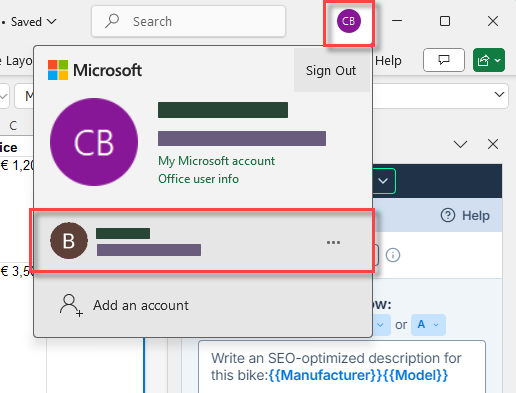
In the upper-right corner of the application, click your account icon or picture.
-
Select the account you want to switch to.
 info
infoIf the account you want to switch to is not in the list, click to add a new account and complete the sign-in process.
-
If you are using the desktop version of Excel, close the application and reopen it.
You have switched to another account. You can now launch and use GPT for Excel with the new account.
tip
If you signed in with the wrong account during installation, contact support to request an account transfer.