Install GPT for Word
GPT for Word is part of the GPT for Excel Word add-in. One installation covers Microsoft Word and Microsoft Excel, on both desktop and the web; this guide focuses on installing and using the add-in for Microsoft Word.
Prerequisites
The following table lists the minimum versions of Microsoft Word compatible with the GPT for Excel Word add-in on different Microsoft Office platforms.
 | Windows | macOS | Web |
|---|---|---|---|
Microsoft 365 subscription: Version 2205 (Build 15202.10000) Retail perpetual: Version 2205 (Build 15202.10000) Volume-licensed perpetual: Word 2024: Version 2205 (Build 15202.10000) | Version 16.61 (Build 22040100) | Supported on:
|
Installation
-
Go to the installation page.
-
Click Open in Word.
infoThe add-in will be installed on your Microsoft account for both Word and Excel.

A pop-up appears at the top of the window, requesting your permission to proceed.
-
Confirm to open the Word desktop app.
infoIf this method doesn't work, install the add-in from the app:
-
Open Word.
-
On the ribbon, select Home > Add-ins.
-
Search for "GPT for Excel Word".
-
In the search results, click Add for GPT for Excel Word.
-
-
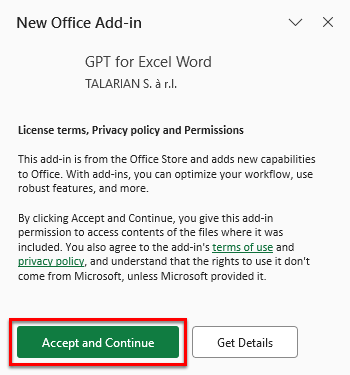
Click Accept and Continue to accept the permissions.
You have installed GPT for Excel Word on your Microsoft account. The add-in is now available from the Home tab in the desktop and web versions of Word. If you don't see it, go to Home > Add-ins > My add-ins > GPT for Excel Word.

If your organization uses a firewall or proxy that restricts network access, you must whitelist the following domains for the add-in to work:
*.gptforwork.com
*.microsoft.com
*.microsoftonline.com
*.live.com
*.office.com
Having trouble installing?
If you run into any issues while installing the add-in, see the troubleshooting guide.
What's next
-
Learn about GPT for Word.
-
Start authoring text with GPT for Word.