Create a team
You can create a team in Autosheet so that all team members can use the add-ons with shared billing as well as shared API keys and endpoints.
To set up your team:
-
Create an Autosheet account (if you don't already have one).
Create an Autosheet account
If you already have an Autosheet account, skip to Set up your space.
Make sure you sign in with an account for the platform you use.
 Google
 Microsoft
-
Open the Autosheet dashboard.
-
In the GPT for Sheets – Autosheet section, click Sign in with Google.
-
Choose the account you want to associate with the Autosheet account.
-
Click Continue to sign in.
You have created the Autosheet account. The account comes with a space that you own.
-
Open the Autosheet dashboard.
-
In the GPT for Excel Word – Autosheet section, click Sign in with Microsoft or Sign in with Google.
-
Choose the account you want to associate with the Autosheet account.
-
Click Continue to sign in.
You have created the Autosheet account. The account comes with a space that you own.
Set up your space
Before inviting users, set up your space to provide access to the necessary models. Availability of API keys and API endpoints depends on your space's pricing model and plan.
- Subscription
- Pay-as-you-go
-
Manage API keys for your space. Available on Business and Enterprise plans.
-
Manage API endpoints for your space. Available on Business and Enterprise plans in GPT for Excel – Autosheet and GPT for Word.
-
Manage API endpoints for your space. Available in GPT for Excel – Autosheet and GPT for Word.
Invite users to your space
Prerequisites
You are the owner or an admin of the space.
How large your team can be depends on your space's pricing model and plan.
- Subscription
- Pay-as-you-go
Team management is available on Business and Enterprise plans. The size of your team is limited by the number of seats you have, and each user you invite takes up one seat. If you run out of seats, add seats before inviting more users.
-
Sign in to the Autosheet dashboard with the account that you use for your space.
-
In the sidebar, select Users. The page header shows how many of your seats are in use.
-
Click Invite users.
-
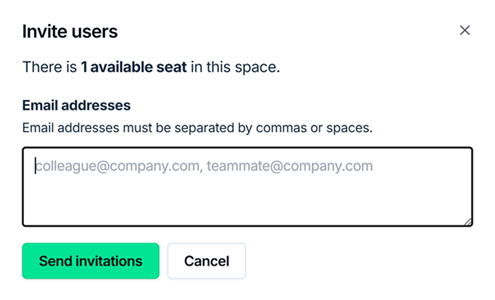
Enter the email addresses of the users you want to invite, separated by commas or spaces.
-
Click Send invitations.
You have successfully invited users to your space. You can resend or cancel an invitation while its status remains Pending. A pending invitation takes up a seat until the user accepts it or you cancel it.
There are no seats in a pay-as-you-go space, so you can invite as many users as you need. Every user draws on the same credit balance.
-
Sign in to the Autosheet dashboard with the account that you use for your space.
-
In the sidebar, select Users.
-
Click Invite users.
-
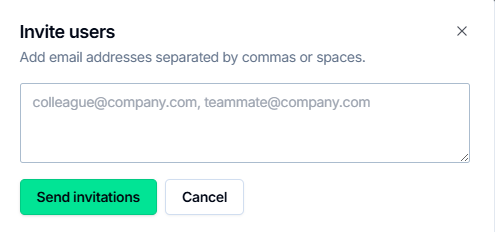
Enter the email addresses of the users you want to invite, separated by commas or spaces.
-
Click Send invitations.
You have successfully invited users to your space. You can resend or cancel an invitation while its status remains Pending.
What's next
-
Install the add-on or add-in on your domain, or have your team members install it individually:
-
Set spending limits for your space and for individual users, on subscription or pay-as-you-go.