Connect to Azure OpenAI from Excel
GPT for Excel can connect to Azure AI to use OpenAI models. In Azure AI, each model has a dedicated API endpoint that you use to access the model.
Prerequisites
Your space is on the Business or Enterprise plan or pay-as-you-go pricing.
You have an Azure account with Azure AI service access.
You have deployed a model in a project.
To use an Azure OpenAI model:
Get the Azure OpenAI API endpoint details
To connect to Azure AI from GPT for Excel, you need the endpoint URL, API key, deployment name, and model name for the Azure OpenAI model you want to use.
-
Sign in to Microsoft Foundry.
-
Select the project that has the model you want to use.
-
Click View deployments.
-
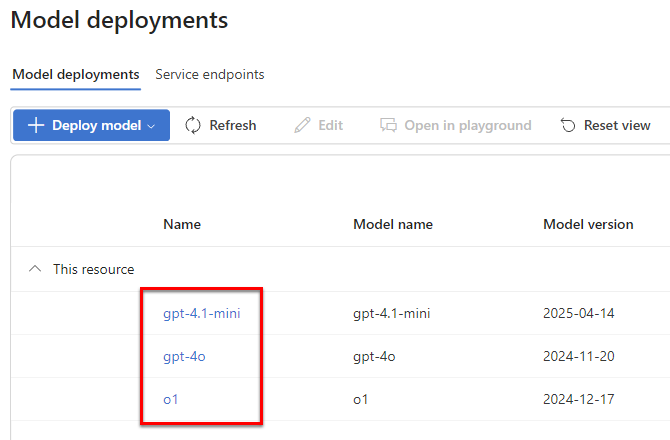
In Deployed models, in the models list, click the name of the model you want to use.
-
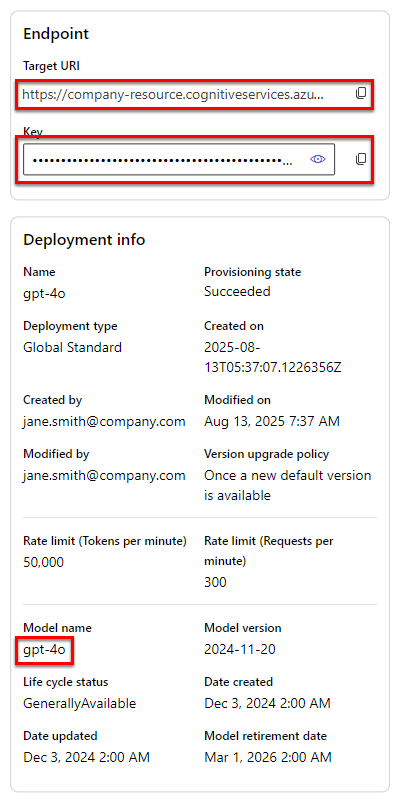
Select Details.
-
In the model details, copy the Target URI, Key, Deployment name, and Model name.
Set up the Azure OpenAI API endpoint
-
Sign in to the GPT for Work dashboard with your Microsoft or Google account.
-
In the sidebar, select Custom API endpoints.
-
Select the Bulk models tab.
-
Click Azure OpenAI endpoints (Chat Completions API).
tipIf you already have Azure OpenAI API endpoints set up, click Add an Azure OpenAI API endpoint.
-
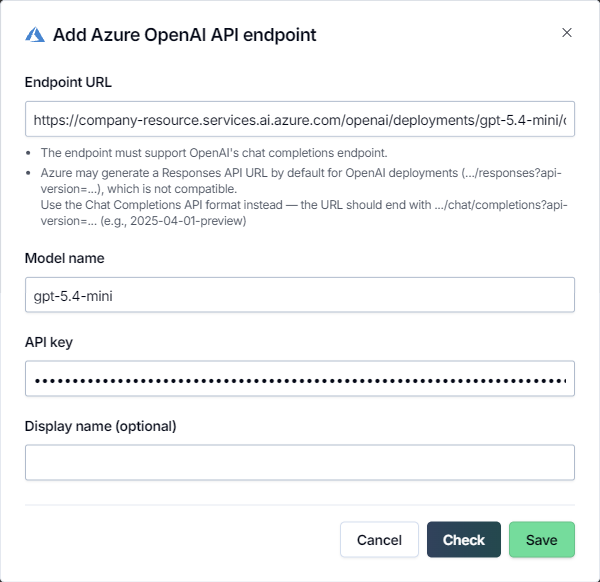
Define the endpoint settings:
-
Endpoint URL: Enter the endpoint URL for the model using the Azure OpenAI Chat Completions API endpoint format:
https://<resource-name>.<domain>/openai/deployments/<deployment-name>/chat/completions?api-version=<api-version>If the URL you copied does not use the above format, rewrite it. For example, let's assume that your deployment name is
gpt-5.4-mini, the API version is2025-04-01-preview, and you copied the following URL:https://company-resource.services.ai.azure.com/openai/v1/responsesTo rewrite the URL into the Chat Completions API format, replace everything after the domain with
/openai/deployments/<deployment-name>/chat/completions?api-version=<api-version>and replace the placeholders with your deployment name and the API version:https://company-resource.services.ai.azure.com/openai/deployments/gpt-5.4-mini/chat/completions?api-version=2025-04-01-previewinfoThe
api-versionis the Azure OpenAI REST API version, which is not shown on the Microsoft Foundry model details page. As a rule, use2025-04-01-previewas the value. -
Model name: Enter the model name.
-
API key: Enter the API key for accessing the endpoint.
-
Display name (optional): Enter a custom display name for the model. If not set, the model switcher uses Model name as the display name.
-
-
Click Check to validate the settings and click Save.
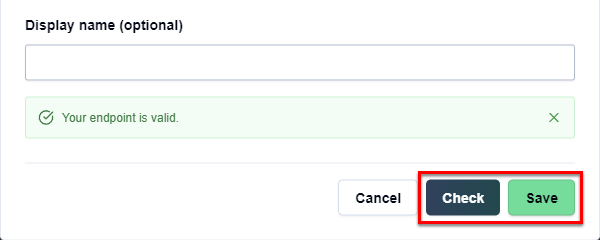
You have set up the Azure OpenAI API endpoint. You can now use the endpoint model in GPT for Excel.
Select the Azure OpenAI model
-
Open a Microsoft Excel workbook.
-
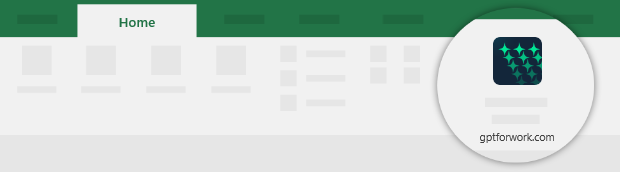
On the ribbon, select Home > GPT for Excel Word.
 info
infoIf GPT for Excel Word is not visible on the ribbon, or if it's grayed out, select Home > Add-ins > My Add-ins > GPT for Excel Word. Learn more.
-
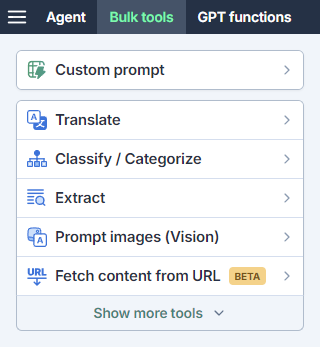
In the sidebar, select Bulk tools and select one of the tools.
-
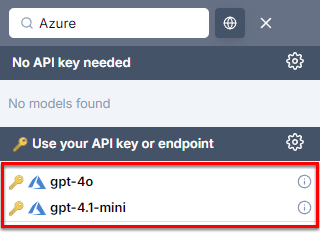
Open the model switcher. You can find the Azure OpenAI model under Connected models.
-
Select the model.
GPT for Excel now uses the selected model to generate responses for bulk tools and GPT functions.