Add-in not working (GPT for Excel – Autosheet)
Sidebar is blank or fails to load
Error loading Add-Ins
Problem: The GPT for Excel – Autosheet sidebar fails to load, or remains blank.
-
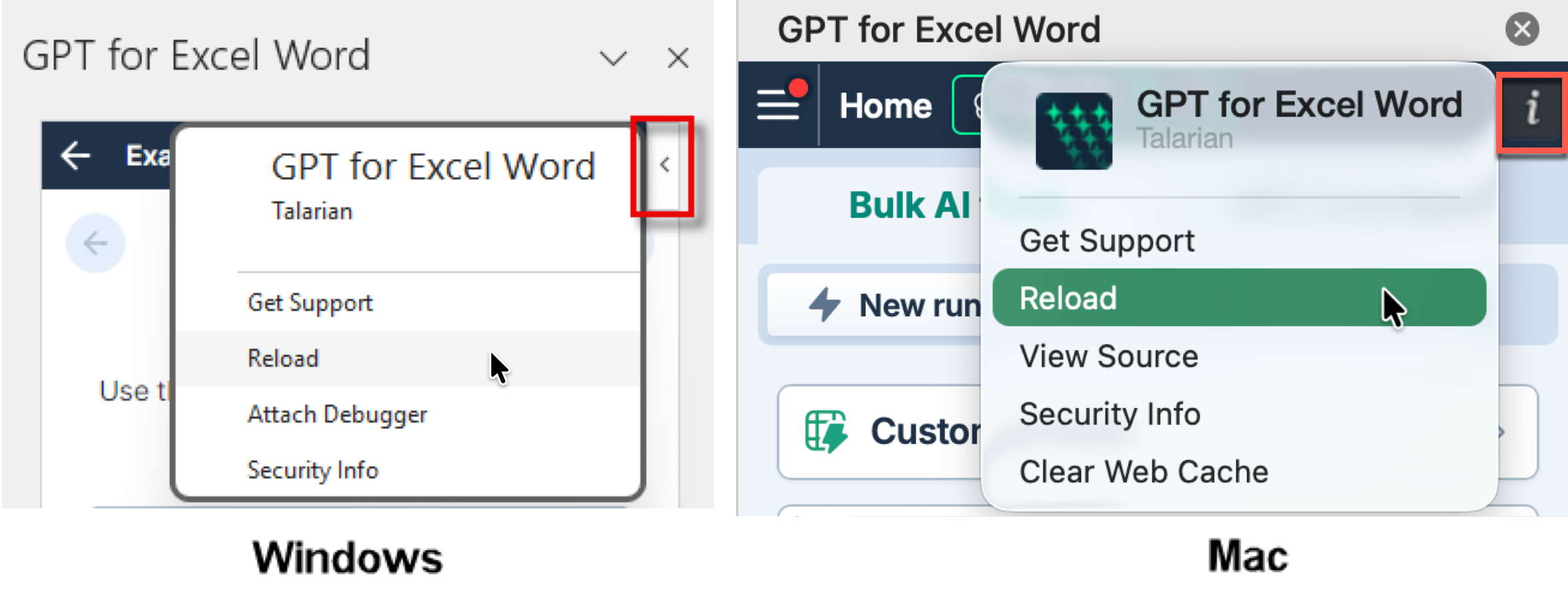
In the desktop version of Excel, open the menu to the right of the sidebar (Windows) or click the info icon (macOS), then click Reload.
-
Restart Excel, create a new workbook, and launch the add-in again by selecting Home > GPT for Excel Word – Autosheet.
-
Refresh the add-ins:
-
On the ribbon, select Home > Add-ins > More Add-ins. The Office Add-ins dialog opens.
-
Select the My Add-ins tab.
-
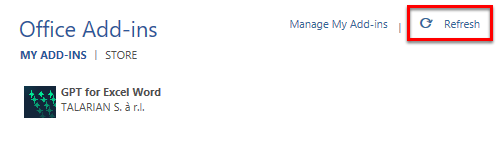
Click Refresh.
-
-
Clear the Office cache, and then uninstall and reinstall the add-in again:
-
Clear the Office cache:
-
macOS: Follow the Microsoft instructions to clear the Office cache on Mac.
-
Windows: Follow the Microsoft instructions to clear the Office cache on Windows.
-
-
If the issue persists, contact support.
Add-in button is grayed out
Problem: The GPT for Excel Word – Autosheet button is grayed out and unclickable on the ribbon when you open Excel. You cannot open the add-in.
-
Open the add-in from the Add-ins menu: Select Home > Add-ins > My Add-ins > GPT for Excel Word – Autosheet.
-
Open the add-in from the Office Add-ins dialog: See the solution for Add-in button becomes grayed out after click.
-
The add-in can be grayed out in legacy or incompatible file formats, such as
.xls,.ods, or.csv. Save a copy of your file as.xlsx, or test the add-in in a new blank workbook saved as.xlsx. -
If the add-in works in the new file, check whether the original file is protected. Protection such as Mark as Final turns off add-ins. Ask the file's owner to remove the protection, or work in an unprotected copy.
-
Excel on Windows: Check for a conflicting COM add-in. Excel can gray out GPT for Excel – Autosheet when a locally installed COM add-in conflicts with it.
-
In the menu bar, select File > Options.
-
In the options sidebar, select Add-ins.
-
In the Manage dropdown menu, select COM Add-ins and click Go.
-
Uncheck the boxes to disable the COM add-ins and click OK.
-
Restart Excel. If GPT for Excel – Autosheet works, re-enable the COM add-ins one at a time to find the conflicting one.
-
-
If you're using Excel in Safe Mode, restart it in standard mode to test GPT for Excel – Autosheet.
-
Reinstall the add-in directly from Excel if it was installed from a web browser.
-
If Excel itself has problems, ask your IT administrator for help. On Windows, you can also follow Microsoft's Office repair instructions. The repair affects the entire Office installation; do not uninstall Office just to test GPT for Excel – Autosheet.
If the issue persists, contact support.
Add-in button becomes grayed out after click
Problem: The GPT for Excel Word – Autosheet button becomes grayed out and unclickable after you click it on the ribbon. The add-in does not open.
Open the add-in from the Office Add-ins dialog:
-
On the ribbon, select Home > Add-ins > More Add-ins. The Office Add-ins dialog opens.
-
Select the My Add-ins tab.
-
Click Refresh.
-
Double-click GPT for Excel Word – Autosheet, or select GPT for Excel Word – Autosheet and click Add.
If you're a Microsoft 365 admin on a business subscription, you can also try opening the add-in from the Admin managed tab instead of the My Add-ins tab.
If the issue persists, contact support.