GPT function issues (GPT for Excel – Autosheet)
Invalid name
#NAME? Invalid Name Error. The formula contains unrecognized text.
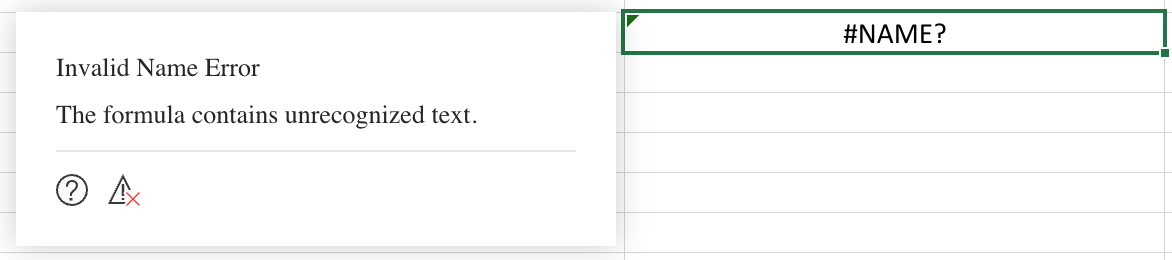
Problem: GPT functions are not recognized by Excel.
-
Check that GPT for Excel – Autosheet is installed on your current Microsoft account.
-
On the ribbon, select Home > GPT for Excel Word – Autosheet to enable the GPT functions.
-
If the problem persists, try activating the add-in (the experience might be slightly different for Mac users):
-
On the ribbon, select Home > Add-ins > More Add-ins. The Office Add-ins dialog opens.
-
Select the My Add-ins tab.
-
Select GPT for Excel Word – Autosheet and click Add.
-
On the ribbon, select Home > GPT for Excel Word – Autosheet.
-
In the sidebar, select GPT functions.
-
Click Retry errors.
-
-
Use the add-in in Excel for the web (see supported versions).
Invalid parameter
Error: Invalid xxx parameter.
Problem: The error indicates a formatting issue or an unreadable parameter within the formula.
Check that your parameters are in the correct order. See the function list.
Check that all parameters (even optional ones) are added as empty when there is another parameter coming after them:
✅
GPT_TRANSLATE(A2, "french", , "Avoid passive voice")Check that you are using the right parameter separator for your locale:
,or;Check that you are using the correct number formats for temperature for your locale:
0.8or0,8
Missing parameter
#ERROR: Missing required arguments categories for function GPT_XXX.
Problem: One of the parameters in your GPT formula is required and hasn't been set.
Check which parameters are required for the GPT function you are using and adjust the formula as needed.
Text values limited to 255 characters
Text values in formulas are limited to 255 characters.
Problem: The text value in your formula is too long and exceeds Excel's 255-character limit.
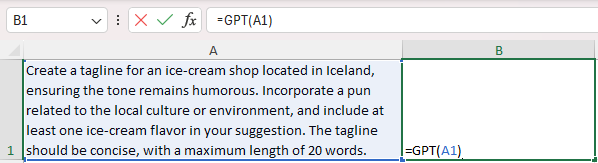
Insert the text into another cell and reference it in your formula, for example, =GPT(A1), where A1 contains the text value.
Functions are stuck on #BUSY
Problem: GPT functions fail to execute and remain in a #BUSY! state, even after reopening your file or restarting Excel.
-
Open the GPT for Excel – Autosheet sidebar before using any GPT functions:
-
On the ribbon, select Home > GPT for Excel Word – Autosheet.
-
Wait for the sidebar to fully load before entering your first GPT formula.
-
-
Delete the GPT formula and undo the deletion to run the formula again.
-
Enter a new GPT formula in a different cell. Subsequent functions typically work correctly.
-
Use bulk tools to avoid this issue in the future, if your use case allows it.
GPT functions prefixed with _xldudf
Problem: After saving, closing, and reopening an Excel workbook, GPT functions start with =_xldudf_GPT.
-
Open the add-in from the Add-ins menu: Select Home > Add-ins > My Add-ins > GPT for Excel Word – Autosheet.
-
Check that you are using a supported version of Excel and install available Office updates.
-
Test the formula in a new blank workbook before changing the original file. If the issue persists, contact support with the error and your Excel version. If you suspect a conflict with another add-in, ask your IT administrator or support to help find it.